要如何在Windows主機建置與執行本地端大型模型(LLM)

紀錄如何在windows電腦建立本地模型

前言

大型語言模型(LLM)是一種人工智慧(AI)模型,透過自然語言處理(NLP)技術
能理解人類語言並產生回覆
例如:OpenAI的ChatGPT、谷歌的gemini與微軟的Microsoft 365 Copilot

收集需求

當決定要自行部屬一套LLM(下文皆會簡稱GPT)
要先決定使用甚麼開源模型例如:臉書Llama 3、谷歌的Gemma與微軟的phi3
決定好模型後就要安裝 Ollama 這套軟體

Ollama 是一款開源軟體,可以讓使用者在自己的設備上執行、建立與分享大行語言模型

安裝 Ollama

Ollama 官方有提供 Windows、Liunx、Macos與docker安裝教學,可以讓大家可以很無腦的安裝

下列會使用 Windows 來當作範例

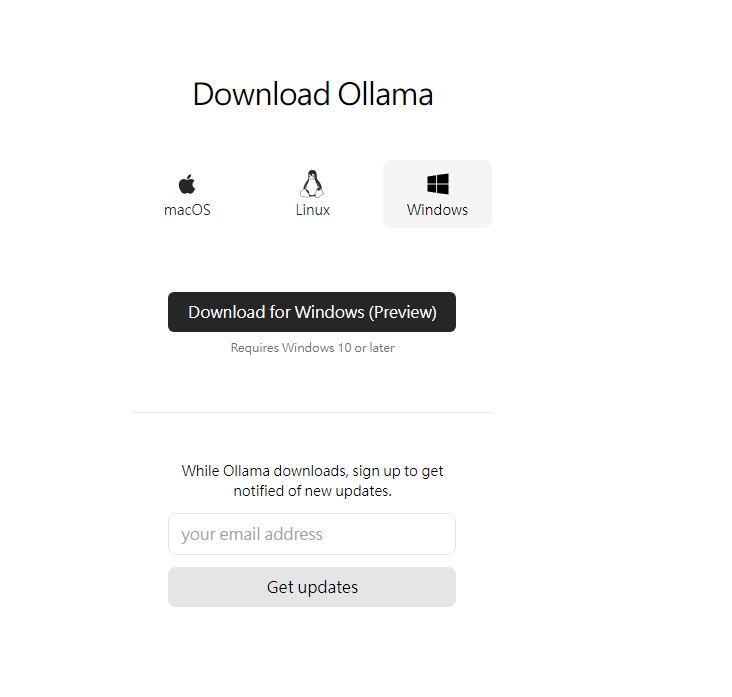
下載安裝包
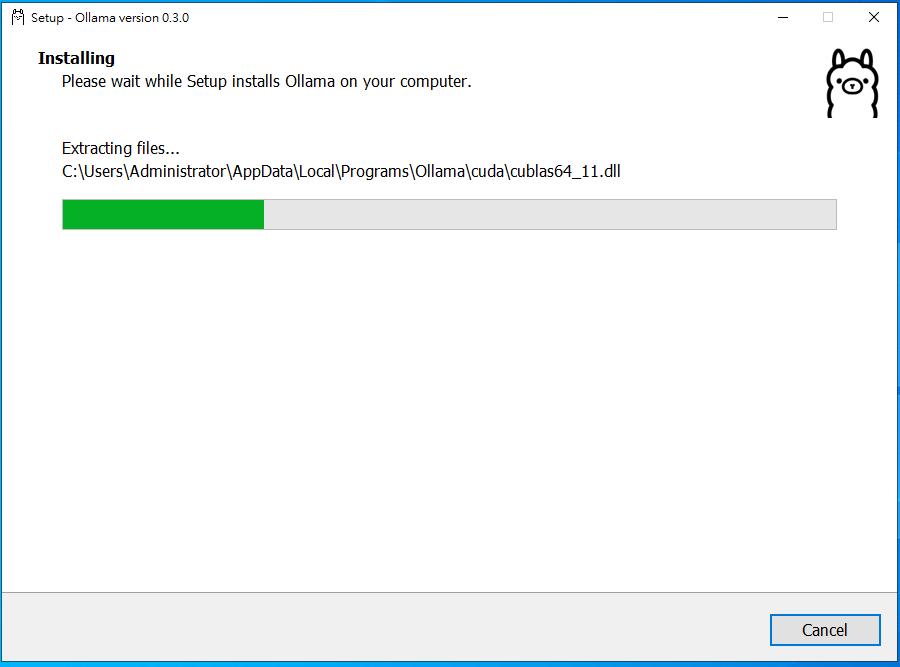
開始安裝

PS:依據主機效能安裝速度會不一樣
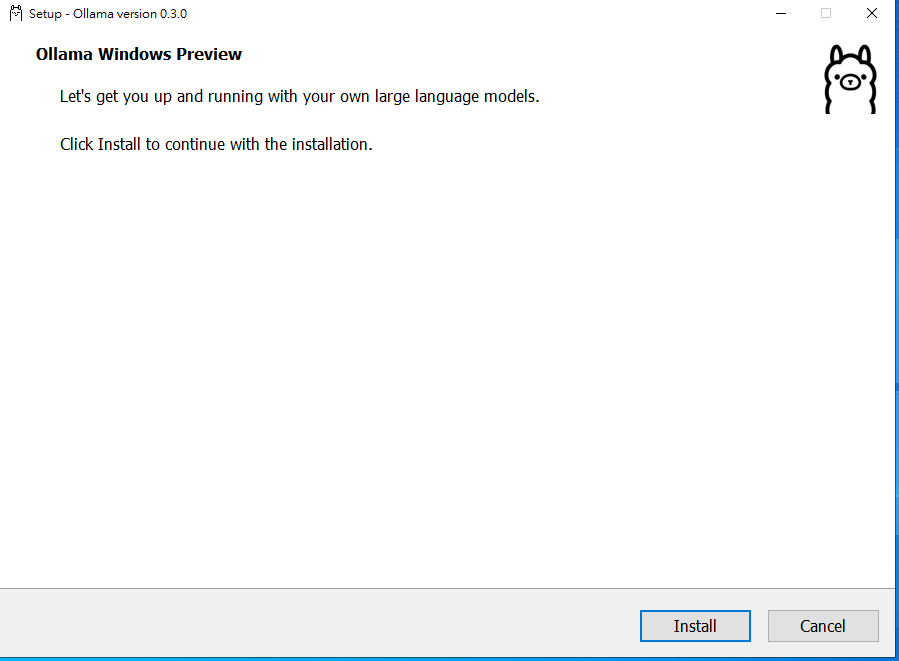
運行Ollama

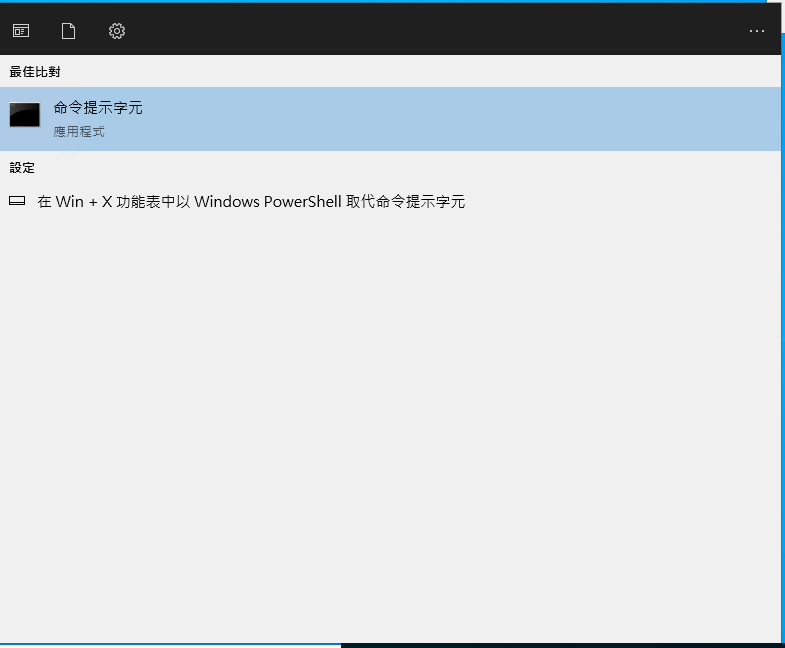
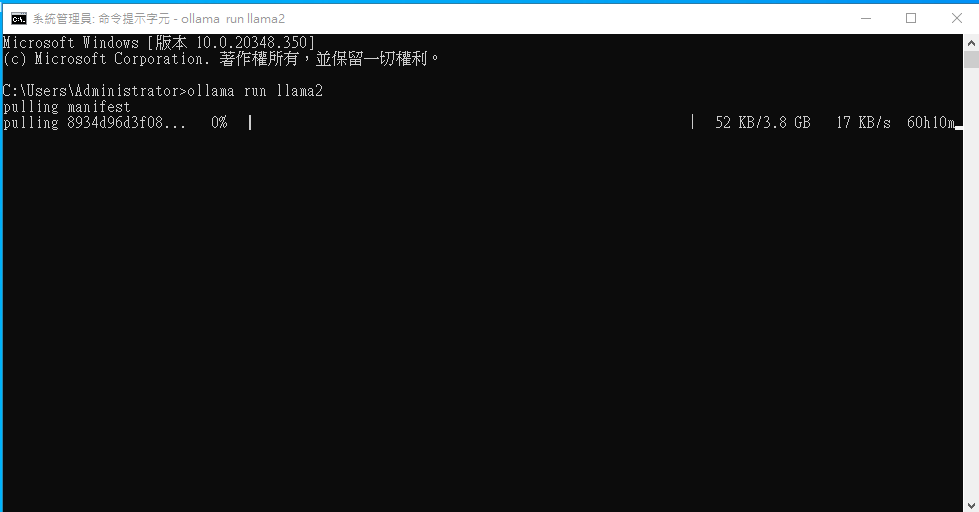
打開電腦CMD 執行下面的語法開始運行llama2模型

1
ollama run llama2

模型的安裝與網速有關,耐心等後安裝,模型安裝完成就可以開始使用了,進行下面的測試

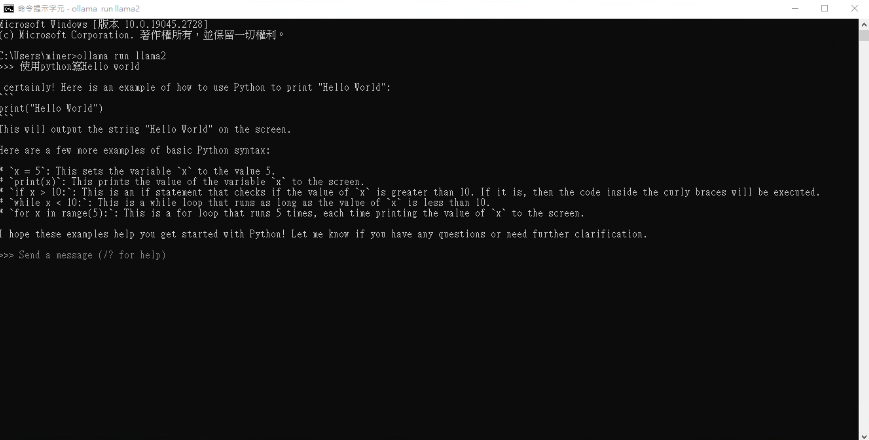
使用python寫Hello world
1
2
3
4
5
6
7
8
9
10
11
12
13
14
15
16
17
>>> 使用python寫Hello world

certainly! Here is an example of how to use Python to print "Hello World":
#```
print("Hello World")
#```
This will output the string "Hello World" on the screen.

Here are a few more examples of basic Python syntax:

* `x = 5`: This sets the variable `x` to the value 5.
* `print(x)`: This prints the value of the variable `x` to the screen.
* `if x > 10:`: This is an if statement that checks if the value of `x` is greater than 10. If it is, then the code inside the curly braces will be executed.
* `while x < 10:`: This is a while loop that runs as long as the value of `x` is less than 10.
* `for x in range(5):`: This is a for loop that runs 5 times, each time printing the value of `x` to the screen.

I hope these examples help you get started with Python! Let me know if you have any questions or need further clarification.

常見問題

Q1.預設模型存放何處與要如何修改存放位置
預設模型存放路徑C:\Users<用户名>.ollama\models
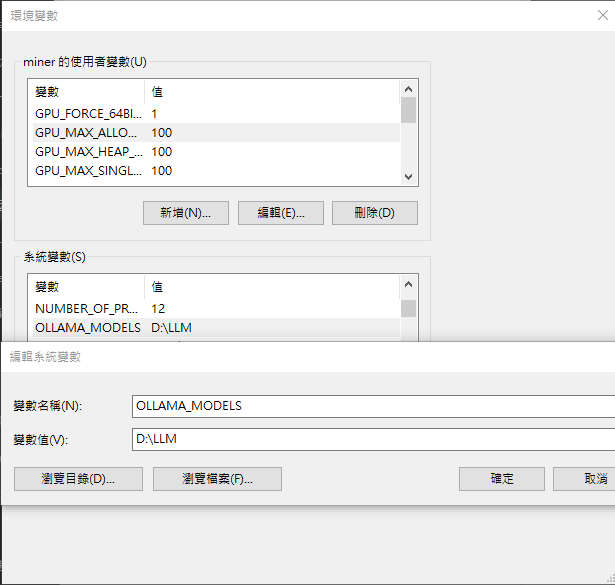
要修改存放路徑方式如下 在系統新增環境變數 “OLLAMA_MODELS” 環境變數值指存放的目錄
GitHub

下列網址為官方GitHub,更多的功能請參考相關文件,有問題可以進行留言
https://github.com/ollama/ollama